

Running out of iCloud storage? Here’s a quick way to avoid paying for more storage.
Are you constantly getting messages on your iPhone that you’re almost out of iCloud storage? Chances are, your Photos app is taking up most of that space. More specifically, it’s probably the videos in your Photos library.
Most of us have thousands of photos and videos on our phones and in iCloud. But videos take up much more space than photos, and the longer the video, the more storage it uses. For example, one 90-second video can take up the same amount of storage space as hundreds of photos. So while it’s always a good idea to clean up your photos, if you need to free up space quickly, it’s usually more efficient to start with videos you no longer need.
If you want to avoid paying for more iCloud storage, you may need to delete some of those larger video files.
I can hear the collective sigh already. The thought of scrolling through your overwhelming camera roll, finding videos, reviewing each one, and deciding what to delete can feel worse than just paying for more iCloud storage. But there is a way to make the process a little easier.
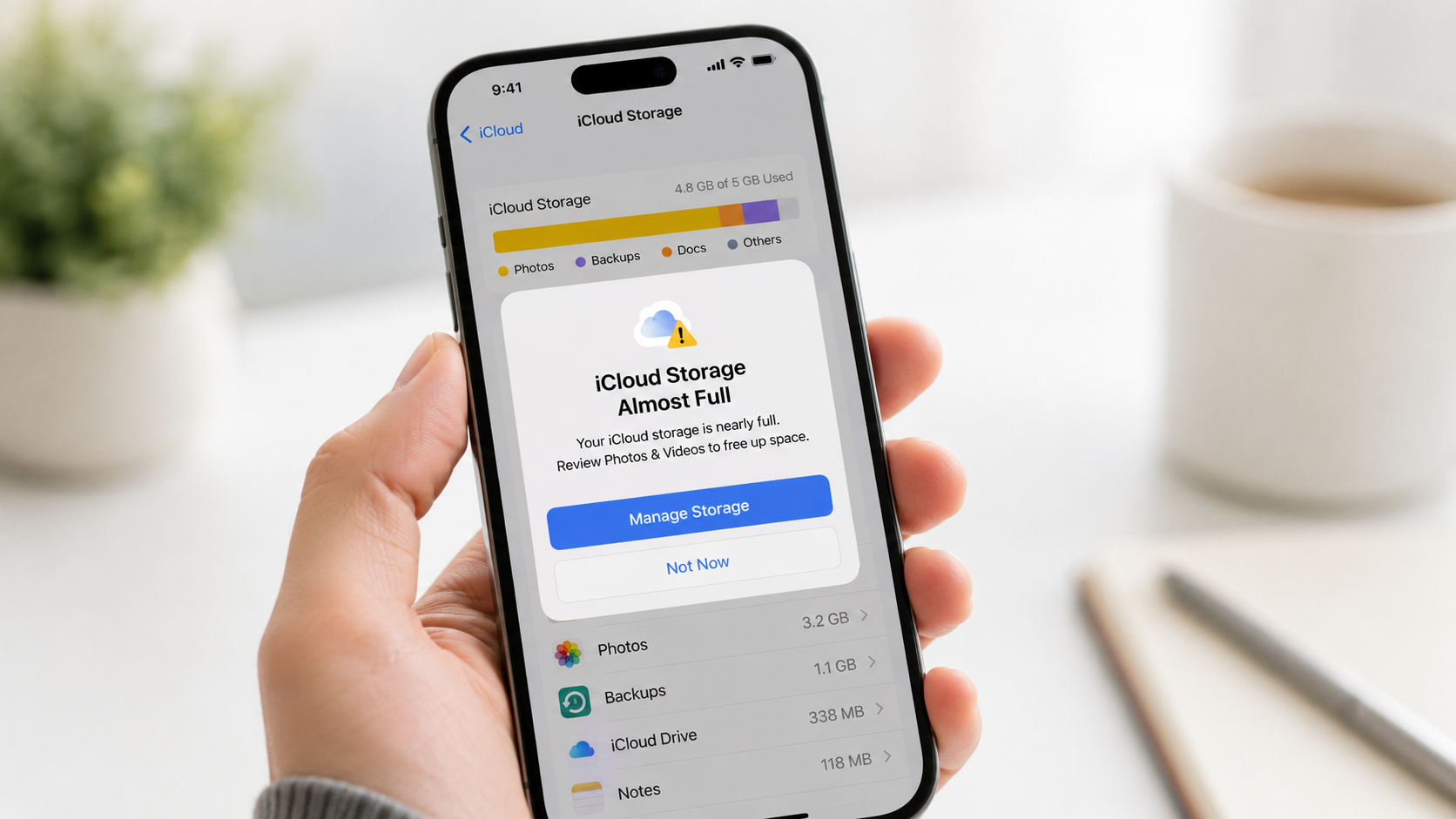
iCloud warning that doesn’t have to require paying for more storage.
On your iPhone, you can isolate all of your videos and view them in order by file size. This allows you to review the largest videos first and delete anything you no longer need. It’s one of the quickest ways to clean up your video library, regain valuable iCloud storage space, and potentially avoid paying for more storage.
In iOS 26:
1. Open the Settings app.
2. Tap your name at the top.
3. Tap iCloud.
4. Tap Storage at the top.
5. Tap the icons at the top of the screen. The app taking up the most space in iCloud will appear as the largest icon in the center, which is often the Photos icon.
6. Tap Review Photos & Videos.
7. Tap Videos.
From there, you’ll see your videos sorted from largest file size to smallest. You can tap Select to choose multiple videos to delete, or tap an individual video to review it before deciding whether to delete it. Note that when photos and videos are deleted from the Photos app, they move to Recently Deleted for 30 days. After that, they are permanently deleted.